LoopMC Installation
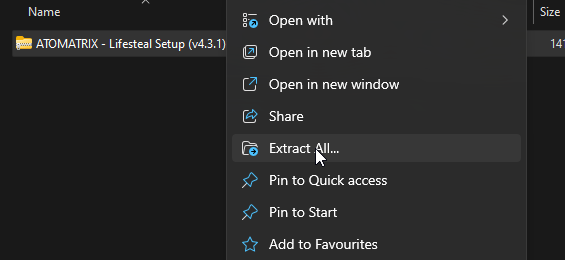
1. Unzip your download
Find the ZIP file in your downloads from BuiltByBit or the Atomatrix Store, then extract it to open the folder inside.

2. Upload the server files
- Shut down your server and connect to it through FTP or SFTP. Contact your hosting provider if you do not know how to do this.
- Remove the existing files from the server's main directory. Download or move them elsewhere first if you want to keep a backup.
- Upload
Server Files.zipto the empty main directory. - Extract the ZIP in place. It should create the server folders and configuration files in the main directory.
- Delete the uploaded ZIP after it has been extracted.
3. Download a Server JAR
Use Paper and Java 25. If your host has a server JAR selector, choose the required Paper version and set Java to 25. For a manual installation, upload the downloaded JAR to the main server directory and name it paper.jar.
Paper Server JAR
Required Minecraft version: 26.2.
Download Paper 26.2Keep the Required Server Version
An older or newer server version can prevent worlds or plugins from loading. Use a different version only when a setup update explicitly supports it.
ViaVersion and ViaBackwards are already included for compatible clients. They do not change the version your server must run.
4. Install UnlimitedNameTags
The only plugin that must be downloaded separately is UnlimitedNameTags.
UnlimitedNameTags
This is the only plugin you need to download separately for LoopMC. Open a compatible release and download the plugin JAR from its release assets.
View Plugin Releases- Open the releases page using the button above.
- Open the latest compatible release and download its plugin JAR from the release assets.
- Upload the JAR directly to the server's
/pluginsfolder. Do not extract it.
5. Start the server
Start the server and wait for it to finish loading. The first startup may take longer while Paper and the plugins prepare their files.
The setup's branding, store links, rank perks, Purge settings, and season reset process are covered on the Extra Information page.
Check your first start
Wait for startup to finish, check the console for disabled plugins or missing dependencies, and join with a test account. Confirm that spawn and the main player menu work before adding custom plugins or changing gameplay settings.
Next, follow Extra Information for branding.