Vote Ranks Installation
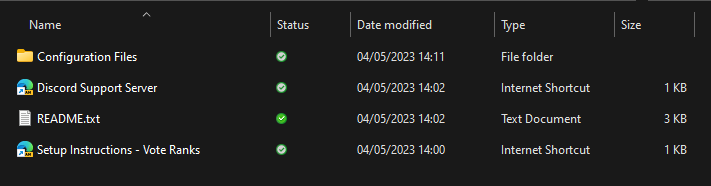
1. Extract & Find the Folder
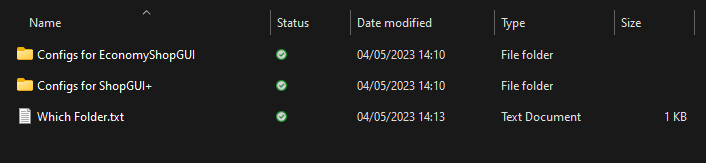
Extract the downloaded .zip file and locate the "Configuration Files" folder. Open that folder and choose the configuration for your shop plugin.
2. Install Dependencies
You will need some plugins for this config to function properly. Download the following files and add them to your /plugins folder. It is assumed that you already have your shop plugin on your server.
The plugins required are: DeluxeMenus, RocketPlaceholders, jShader, VotingPlugin, Clickable Links and ConsoleLogger
Required Plugin Downloads
Open the download list and download each required plugin. Upload the JARs directly to your server's /plugins folder; do not extract them. If a required plugin is already installed, check its compatibility before replacing it.
3. Installing the config
If you have installed DeluxeMenus for the first time, drag the contents of the /plugins folder into the /plugins folder of your server. This should hold the config files for DeluxeMenus and RocketPlaceholders. You can then restart your server and move on to the next step.
If you already have DeluxeMenus running other GUIs on your server, you will need to copy the menu separately.
- Open
/plugins/DeluxeMenus/gui_menusin the Playtime Levels resource folder and copy thevote.ymlfile. Upload this to the/plugins/DeluxeMenus/gui_menusfolder in your server host. - Navigate to /plugins/DeluxeMenus/config.yml in your server host. Open the file and add the following to the bottom of the file:
  vote:
    file: vote.yml
- You can now reload DeluxeMenus with
/dm reloadand continue.
4. Shop Modifiers
Follow the different steps depending on the shop plugin you are using:
ShopGUI+
- Open the
pricemodifiers.ymlfile in the ShopGUI+ directory. - Replace the text in that file with this text.
- Save the file and reload the plugin.
EconomyShopGUI
- Open the config.yml file in the EconomyShopGUI directory.
- Set
enable-sell-multipliersto true in the config. - Locate the
sell-multipliers:key in the file and replace everything underneath that key (not the rest of the file) with this text. - Save the file and reload the plugin.
5. Final Setup
Add the following to the bottom of your commands.yml file in the root folder of your host. This will ensure that the correct menu opens.
  vote:
  - deluxemenus:vote $1-
The config is built to work with PlayerPoints (for coins). If your server uses a different plugin, you'll have to change the commands in the file (but this can be done quickly with find and replace tools).
6. Placeholders
%rp_voteranks_rank%- Shows the player's rank as a nice rank (Useful for chat, tab and above name)%rp_voteranks_number%- Shows the player's rank as a number.
7. Extra Information
For more information on this config, read the Extra Information page.