Lifesteal Installation
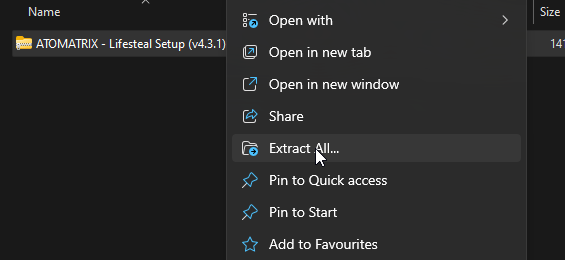
1. Unzip your Download
Find the zip file in your downloaded files from BuiltByBit or Atomatrix Store. You will need to unzip it to open the folder inside.

2. Upload to your Server
- Shut down your server and connect to it via FTP or SFTP (contact your server hosting provider if you don't know how to do this).
- You then need to delete/cut all the server files out of the main directory of your server. If you want to keep these files, you'll have to put them in another folder or download them somewhere else.
- Upload the
Server Files.zipfile to your server host. It should be the only file on there. - Unzip the file; it should create many files in the main directory. Once the file has been unzipped, the
.zipcan be deleted.
3. Download a Server JAR
Use Paper for this setup. If your host has a server JAR selector, choose the required version there. Otherwise, download it below and upload the JAR to your server.
Paper Server JAR
Required Minecraft version: 26.3.
Download Paper 26.3Keep the Required Server Version
An older or newer server version can prevent worlds or plugins from loading. Use a different version only when a setup update explicitly supports it.
ViaVersion and ViaBackwards can allow compatible clients on other versions. They do not change the version your server must run.
4. Plugin Dependencies
Because of licensing restrictions with specific plugins used in the setups, you will need to download some independently and add them to your /plugins folder.
TAB is already included in the setup.
The plugins required are: Citizens, CrazyVouchers, BetterBalls and ChatGames Lite.
Required Plugin Downloads
Download the required plugin JARs, then upload them directly to your server's /plugins folder.
5. Lifesteal Core Integration (Optional)
If you have the LifestealCore plugin and would like to use it in this setup, follow the steps below. Please note that these steps are optional and the premium plugin is not required for the setup to function.
- Upload
LifestealCore.jarto the/pluginsfolder. You can download it from BuiltByBit, Spigot or Voxel Shop. - Delete
HealthSMP.jarfrom the/pluginsfolder. This is the old Lifesteal plugin. It needs to be deleted, so the plugins don't clash. - OPTIONAL: Delete the
/plugins/HealthSMPfolder. The server will still function with the folder here, but it is no longer needed.
The LifestealCore config has been slightly configured, but you may want to configure it more, depending on your liking. Configure the file at /plugins/LifestealCore/config.yml.
6. Starting the Server
You can start the server and enjoy your premade setup. Please be aware that the start-up may take longer for the first time, as it needs to generate the necessary files.
Due to how pre-made server setups are created and delivered, you will probably find that when you first log in, there are a lot of plugin updates. I recommend updating these if you can to avoid any issues further down the line.
7. Styling your server
To obtain further information regarding server styling, rank permissions, and essential tips, please refer to the Extra Information page.
Check your first start
Wait for startup to finish, check the console for disabled plugins or missing dependencies, and join with a test account. Confirm that spawn and the main player menu work before adding custom plugins or changing gameplay settings.
Next, follow Extra Information for branding.